Customer Support for Small SaaS Teams Without a Big Helpdesk
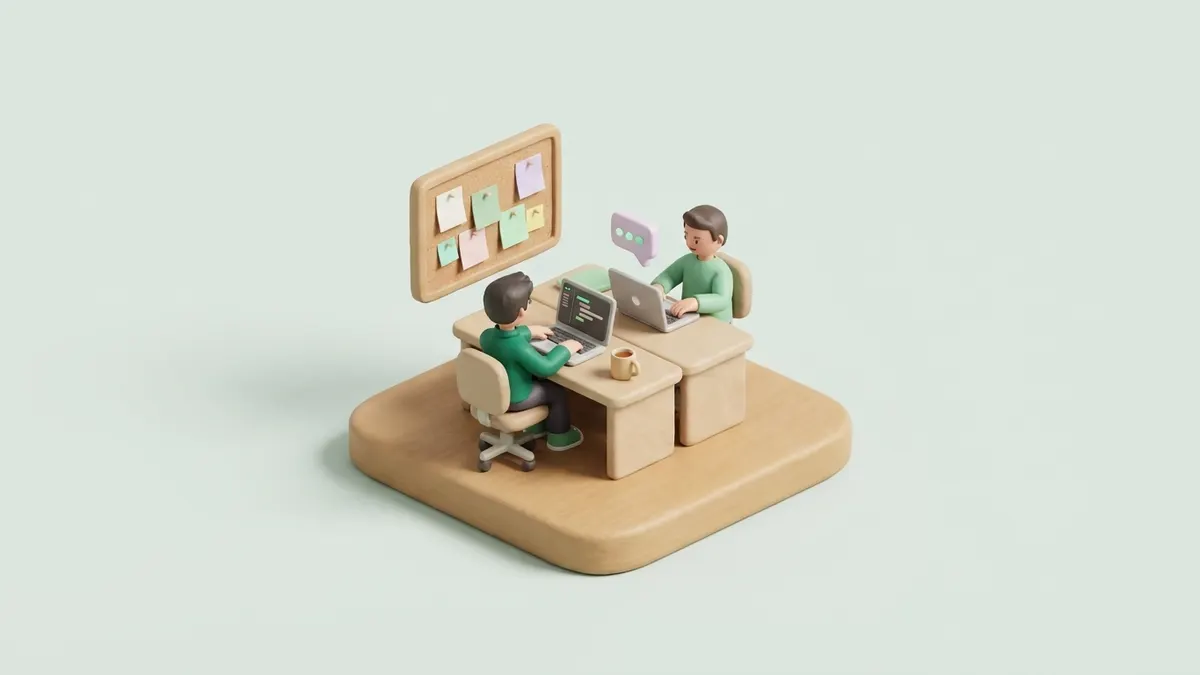
You're two founders and a part-time developer. Your app has a few hundred paying customers on a £15 a month plan. Support happens in a shared inbox, a Slack channel and, occasionally, your personal phone. Someone writes "it's broken" with no other detail, and you spend twenty minutes working out which page they mean.
This is normal for a small SaaS team. You don't need an enterprise helpdesk to fix it. You need a few simple habits and a tool that does a small number of things well.
What support looks like at a small SaaS
Most support requests at an early-stage product fall into three groups:
- Product questions. "How do I export to CSV?" "Do you integrate with Xero?" "What's on the annual plan?"
- Problems. "I can't log in." "The payment page shows an error." "The dashboard won't load in Safari."
- Sales and account questions. "Can I get an invoice in our company name?" "Can we add a second user?"
The first group is usually answered in your docs already. The second needs your attention and some detail. The third often needs a quick human reply. The trick is handling each group in the right way.
Answer product questions from your docs
A chat on your site can answer these straight away, as long as it sticks to what you've actually written. That last part matters. You don't want an assistant inventing a feature or telling someone you integrate with a tool you don't.
With KipDesk, the assistant reads your website, including product pages, pricing, FAQs and policies. You approve the facts it drafts, and you can add more:
- Upload docs as PDF, Word or plain text (up to 4 MB each)
- Paste text, such as a changelog summary or a setup guide
- Write your own answers for common questions
It answers only from these sources and shows where each answer came from. When it can't find the answer, it says so, takes the visitor's details, and adds the question to your to-do list. You answer once, and it uses that answer next time.
This also shows you where your docs have gaps. If the same unanswered question keeps appearing, that's a help article you should write.
Turn bug reports into useful tickets
"It's broken" is the hardest support message to act on. You need to know what they were doing, where, and on what browser.
KipDesk's problem reports are built for this. When a customer says something isn't working, such as an error, a login problem, or a payment issue, the chat offers a short form for their email and what happened. There's also a Report a problem button at the bottom of the chat that is always visible.
Each report becomes a ticket, numbered #1, #2 and so on, and includes:
- The customer's email
- What they said happened
- The page they were on
- Their browser
That detail often saves a round of back-and-forth. "Login fails on /account/settings in Safari" is something your developer can try to reproduce.
You get an email for each new report, and it appears in Tickets in your dashboard. You reply from there. The customer gets your reply by email, plus a private link to a page where they can see the whole conversation and reply back.
Problem reports are switched on automatically for software and app businesses, and you can turn them on or off in Settings.
Keep it organised with simple statuses
KipDesk tickets have three states:
- Needs you: a new report, or one the customer has replied to
- Waiting on customer: you've replied and you're waiting to hear back
- Solved: done
If a customer replies to a solved ticket, it opens again. That's enough for a small team to see at a glance what needs doing today.
A few habits help:
- Check Tickets once in the morning and once in the afternoon, rather than reacting to every email.
- When you fix a bug, reply to everyone who reported it, then mark them solved.
- Copy the page and browser into your issue tracker when you log the bug, so the developer has them.
When to jump into live chat
Some conversations go better in real time. A trial user who's stuck during onboarding, or a prospect asking detailed questions about your annual plan, is worth a live reply if you're around.
When the assistant can't answer, or the visitor asks to talk to a person, it asks you to join. Visitors can also press Talk to a person at any time. You get an email with a "Reply now" button, and if your dashboard is open you also get a sound and an alert. Your reply appears in their chat within a few seconds, and the assistant stays quiet until you click "End chat".
At the same time, the visitor is asked for their name and phone number or email. So if you're in a meeting or asleep, you still have a way to follow up.
A simple rule of thumb: jump in live for sales questions and onboarding blockers. Use tickets for bugs, because they need investigation and a written record.
Be honest about what a simple tool does
KipDesk's ticket inbox is deliberately simple. It is not a full helpdesk. Right now there is:
- No assigning tickets to team members
- No automation rules or macros
- No file uploads on tickets
Adding team members to your account is on the coming soon list, without a date.
For a team of one to three people handling a manageable number of reports, that's often fine. If you have a dedicated support team, SLAs, or need detailed routing and reporting, a full helpdesk will suit you better. It's worth knowing which one you are before you choose.
Plans start at $19 a month, with a 7-day free trial and no card needed. See pricing for the details, or read more on our SaaS page.
Putting it together
For a small SaaS team, good support usually means three things: answer common questions from your own docs, collect bug reports with enough detail to act on, and be available live when it really counts. If you're weighing up chat against a plain form, website chat vs contact form covers the trade-offs.
Start small, keep it organised, and let your support inbox tell you which docs to write next.